


Canva AI image generator guide
The AI image generator inside Canva has become a practical entry point for people who want to create visuals without mastering complex design software. It combines text-to-image generation with Canva’s familiar editor, templates, and brand tools, making it appealing to beginners while still offering enough control for experienced creators. This guide explains how Canva’s AI image generator works, what it can and cannot do, and how to use it effectively for consistent, high-quality results.
What the Canva AI image generator is
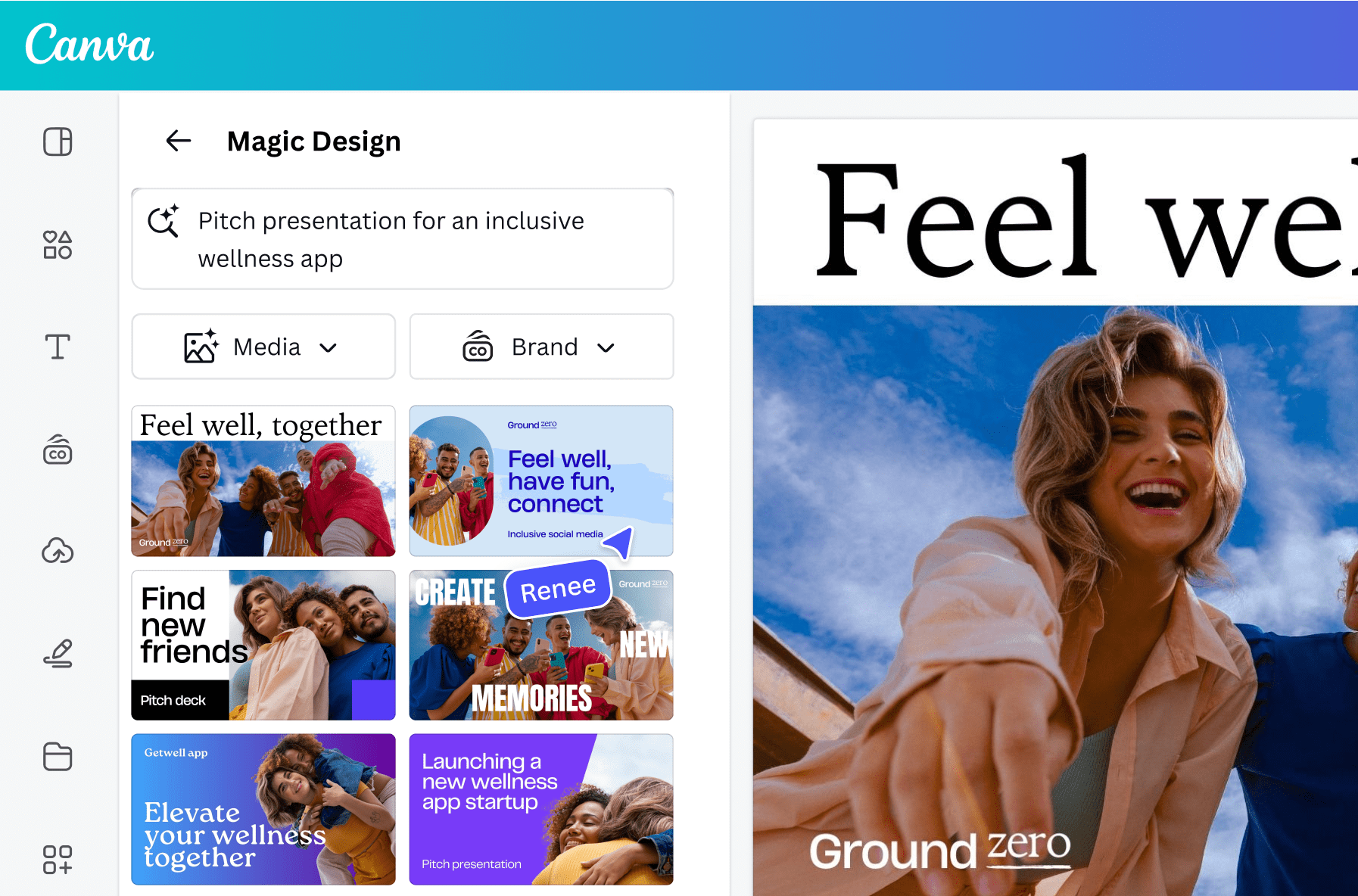
Canva’s AI image generator is part of its broader AI feature set, often referred to as Magic Media. At its core, it allows users to type a text prompt and receive one or more generated images that can be edited immediately within Canva’s design environment.
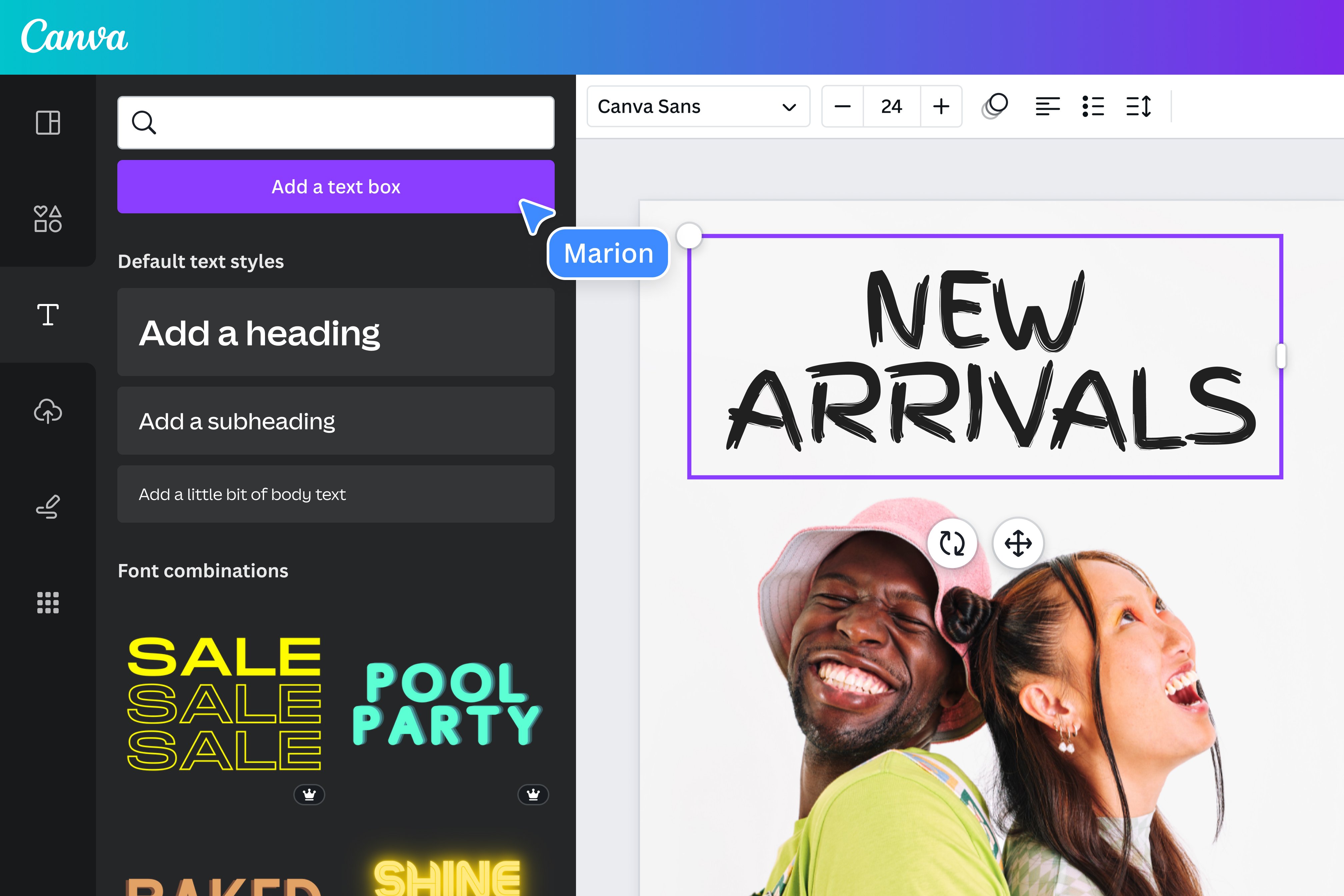
Unlike standalone AI art tools, Canva integrates generation, editing, and publishing in a single workflow. Generated images can be resized, combined with text, layered with graphics, and exported for web, social media, presentations, or print.
The system is designed to prioritize usability over deep technical controls. Users do not need to manage complex parameters, seed values, or model versions. Instead, Canva focuses on clarity, speed, and compatibility with everyday design needs.
How text-to-image works in Canva
The text-to-image process follows a straightforward pattern:
- The user writes a descriptive prompt
- Canva interprets the prompt using its AI image model
- Several image variations are generated
- The user selects one and refines it in the editor
Prompts can be short or detailed, but clarity matters more than length. Canva responds best to prompts that describe subject, setting, style, and mood in plain language.
Examples of effective prompt elements include:
- Subject: person, object, scene, or concept
- Context: background, environment, or activity
- Style: illustration, photo-realistic, flat design, watercolor
- Tone: bright, minimal, dramatic, soft lighting
Because Canva is aimed at general users, it tends to avoid extreme or abstract interpretations. Results are usually safe, clean, and suitable for common design contexts.
Available styles and visual directions
Canva provides preset style options to guide image generation. These are not rigid filters but directional cues that influence the look and feel of the output.
Common style categories include:
- Photo-realistic images for marketing and websites
- Digital illustrations for blog posts and social media
- Flat or minimal designs for presentations
- Artistic styles such as watercolor or sketch
Using a style preset reduces guesswork and helps maintain visual consistency across projects. For brand-focused work, this consistency is often more valuable than experimental variety.
Editing generated images inside Canva
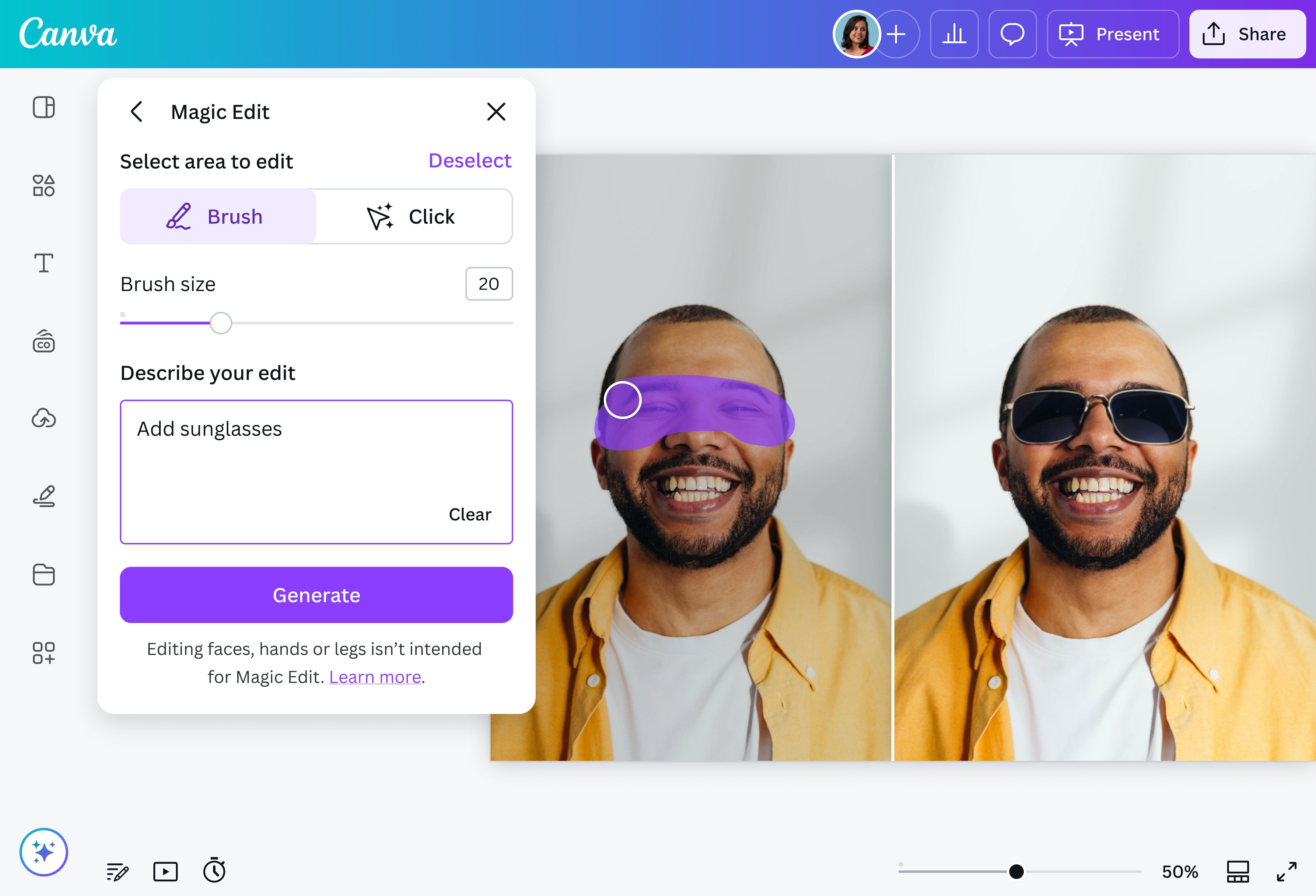
One of Canva’s main advantages is what happens after the image is generated. The output becomes a fully editable element inside the canvas.
You can:
- Resize and crop without quality loss for standard use
- Adjust brightness, contrast, and color balance
- Add text, icons, shapes, and overlays
- Combine multiple AI images into a single layout
- Apply brand colors and fonts
This makes Canva especially useful for content creators who need visuals that fit precise layouts rather than standalone art pieces.
Practical use cases for Canva AI images
The Canva AI image generator is best suited for applied design tasks rather than pure artistic exploration.
Common use cases include:
- Blog header images and featured visuals
- Social media graphics and thumbnails
- Presentation slides and pitch decks
- Simple website illustrations
- Marketing banners and ads
- Educational materials and infographics
For SEO-driven websites and AdSense-friendly blogs, Canva’s outputs are generally neutral, readable, and compliant with common content standards.
Image quality and realism expectations
Canva’s AI images are designed to look polished at typical web and presentation resolutions. They are not optimized for ultra-high-resolution print or hyper-realistic photography.
Strengths:
- Clean compositions
- Balanced lighting
- Consistent color palettes
- Low visual noise
Limitations:
- Fine details may appear simplified
- Faces and hands can lack realism in complex scenes
- Advanced artistic styles are less expressive than specialized tools
Understanding these boundaries helps avoid frustration and aligns expectations with the tool’s intended purpose.


Canva AI vs specialized AI art tools
Compared to dedicated AI art platforms, Canva prioritizes integration over control. Tools like Midjourney or DALL·E focus on artistic depth and experimentation, while Canva focuses on usability and workflow efficiency.
Key differences include:
- Canva emphasizes design output, not model tuning
- Prompts are simpler and more conversational
- Editing happens in the same interface as publishing
- Results are optimized for common digital formats
For users who want fast, usable visuals rather than experimental art, Canva’s approach is often more practical.
Licensing and usage rights
Canva generally allows generated images to be used in personal and commercial projects, subject to its terms of service. This is important for marketers, bloggers, and businesses.
Typical allowed uses:
- Website content
- Social media posts
- Marketing materials
- Presentations and reports
Restrictions may apply to resale as standalone assets or use in sensitive contexts. Reviewing Canva’s current licensing terms is recommended for professional projects.
Tips for better results
Small adjustments in how you prompt and edit can significantly improve output quality.
Effective practices include:
- Start with simple prompts and refine gradually
- Use clear nouns instead of abstract concepts
- Specify lighting and mood when relevant
- Choose a style preset that matches your goal
- Edit colors and contrast after generation
- Regenerate variations instead of forcing one image to work
Canva rewards iterative refinement more than overly complex instructions.
Accessibility and ease of adoption
Canva’s AI image generator is accessible to users with no prior design or AI experience. The interface uses familiar language and visual cues, reducing the learning curve.
This accessibility makes it suitable for:
- Students and educators
- Small business owners
- Bloggers and content marketers
- Non-designers in professional teams
For advanced users, the limitation is not usability but creative depth. Canva intentionally trades flexibility for reliability.
Where Canva AI image generation fits long-term
Rather than replacing professional illustration or photography, Canva’s AI image generator fills the space between stock images and custom design. It enables quick creation of visuals that are “good enough” for most digital contexts, without licensing complexity or production delays.
As AI image generation continues to evolve, Canva’s strength will likely remain its ecosystem: generation, editing, collaboration, and publishing in one place. For many creators, that balance is more valuable than maximum artistic control.
In practice, Canva AI images work best when treated as design components rather than finished artworks. When combined with thoughtful layout, typography, and content strategy, they become effective visual tools rather than novelty outputs.
